Managing daily revenue reports across multiple electrical substations can be tedious and prone to manual errors. Fortunately, you can streamline this workflow by using custom Google Apps Script templates tailored for utility management.
This is the first article in a series on all technical tools used to streamline monitoring and keeping track of daily and monthly revenue performance substation-wise, which is duly reported by internal report C3 under MIS for MVVNL discom .for all Monthly report which can be accessed by internal @uppcl.org domain mail.
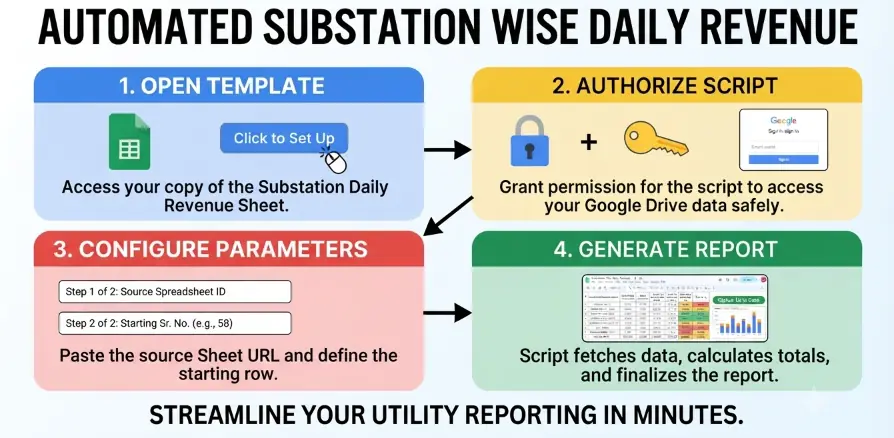
In this step-by-step guide, we will walk through how to set up, authorize, and run the automated Substation Wise Daily Revenue tracking sheet.
Prerequisites & Setup
Before running the automation script, ensure you have logged on to your official mail, which has the @uppcl.org domain, as the MIS report can be accessed by that mail only. The following sheets are required.
- The Template Sheet: A copy of the "Substation-Wise Daily Revenue" template. which can be accessed at Template
- The Source Data Sheet: Can be found at MIS > Current Month Sheet > C3 URL
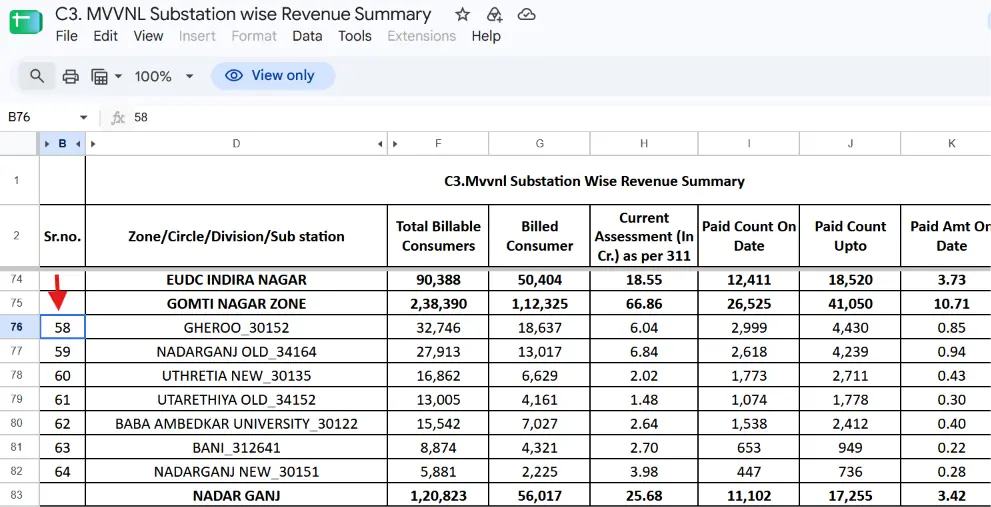
- From this C3 Datasource, you also need to specify which substation revenue you want to track, as shown below. Also, choose the starting point of each division so that All Substations from a division can be tracked.
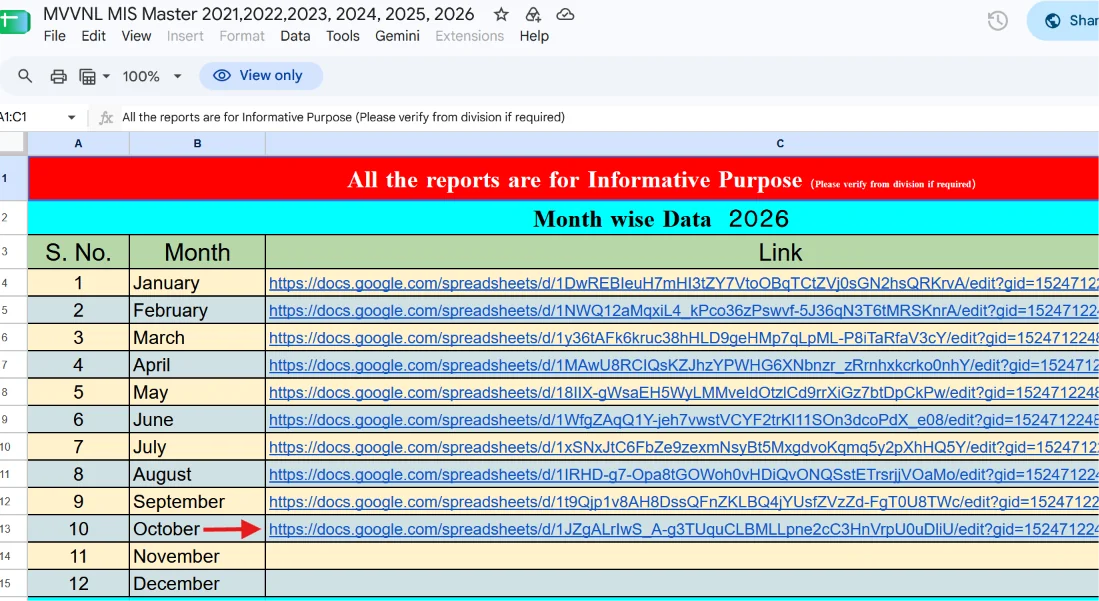
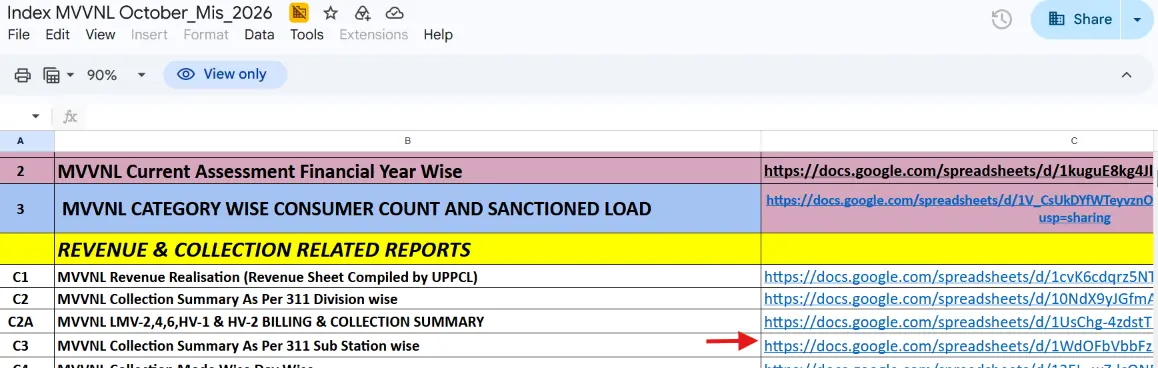
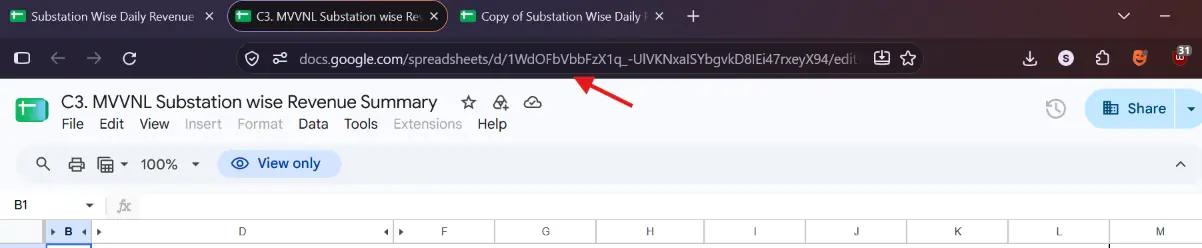
Step-by-Step Procedure
Step 1: Open and Copy the Template
- Open the Google Sheets template for Substation-Wise Daily Revenue.
- Click on Make a copy to save a personal working version to your Google Drive.
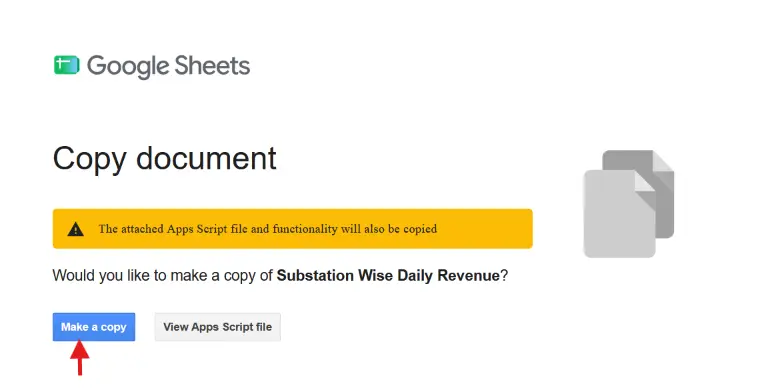
Step 2: Trigger the Setup Script
- Navigate to your newly copied spreadsheet.
- Click on the Setup ( Click to Set Up) to execute the embedded Apps Script.
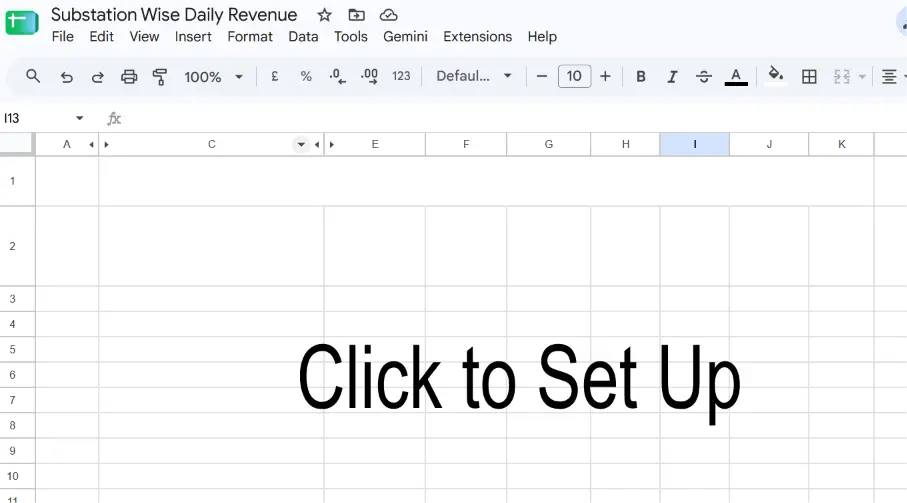
3. A Running script notification will appear briefly while the macro initializes.
Step 3: Grant Authorization
Because the script interacts with your Google Account to pull data across documents, Google will prompt you for authorization:
- When the Authorization Required dialog pops up, click OK.
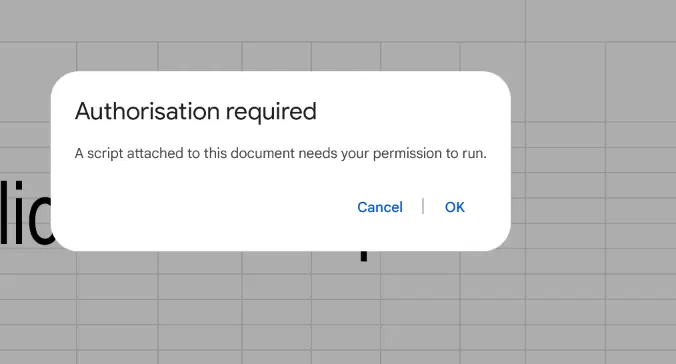
- Choose your Google account when prompted.
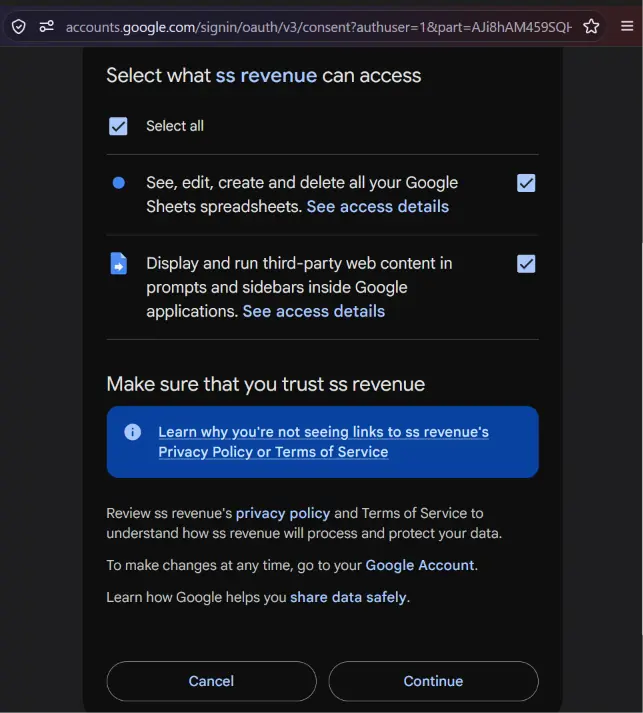
- Review the requested permissions (allowing the script to see, edit, create, and delete your spreadsheets, as well as display third-party content). Check Select all and click Continue.
Step 4: Configure Source Spreadsheet Parameters
Once authorized, the script will guide you through a two-step configuration prompt:
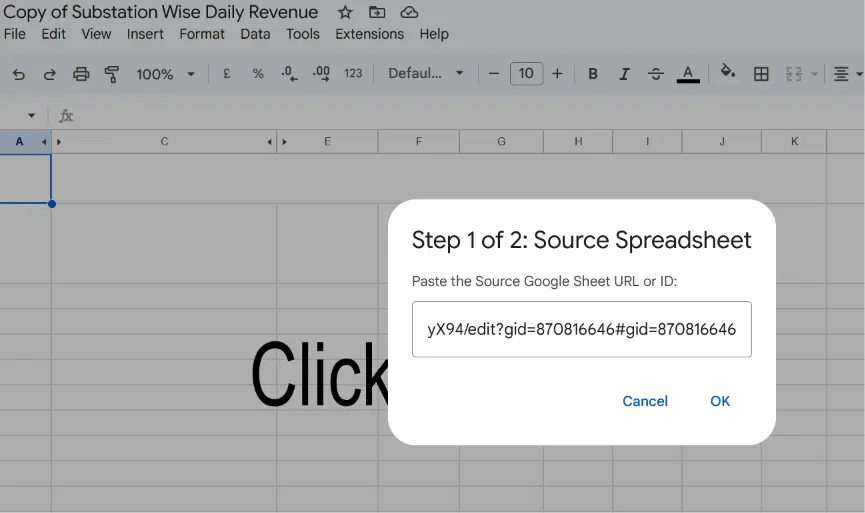
- Step 1 of 2: Source Spreadsheet — Copy the URL or ID of your target source data spreadsheet (e.g., from your monthly index file) and paste it into the input box, then click OK.
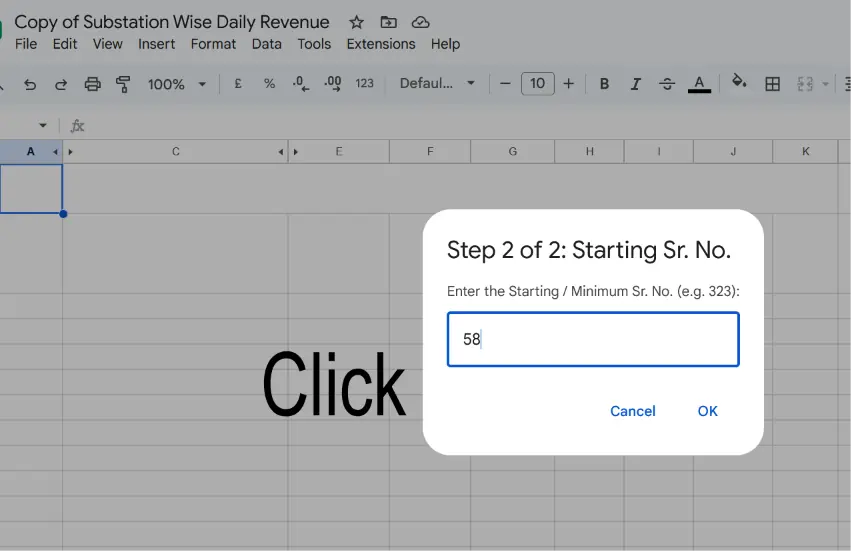
- Step 2 of 2: Starting Sr. No. — Enter the starting or minimum serial number row (for example, type 58 based on your data range) as found in the prerequisite and click OK.
Step 5: Allow External Range Access and Finalize
- The script will fetch and process the records, temporarily displaying loading indicators or #REF! cells while data imports.
- Hover over any #REF, and it will prompt that spreadsheets need connection permissions. Click Allow access.
- Once completed successfully, the sheet will populate with live calculations, color-coded collection efficiencies, and up-to-date status metrics (Status Up to date).
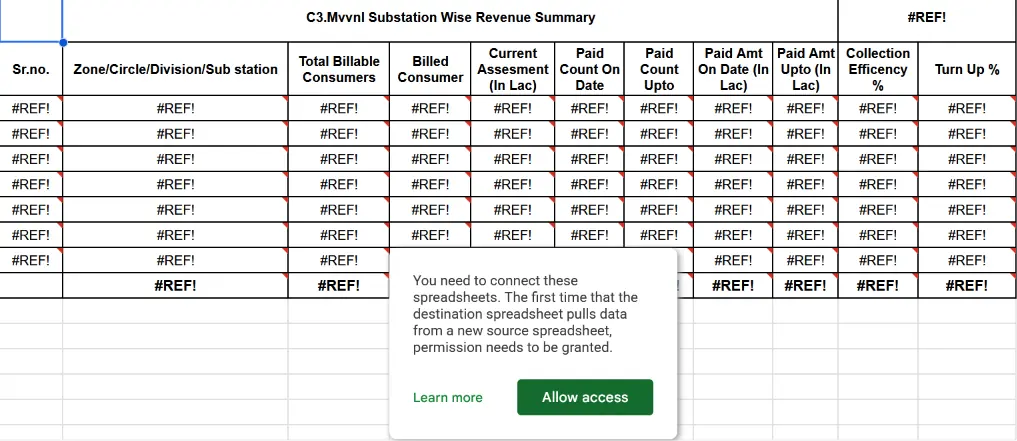
And the report will be Ready and auto-update for the entire month. On changing Month Similar Procedure Have to be applied again.
A few things to consider here are -
- It will only work for employees having @uppcl.org domain-connected mail.
- For the Subdivisional Report, simply delete Substations that do not belong to your subdivision.
Have questions about this article or your electricity bill?
Post your question in our Community Q&A Forum to get verified answers from engineers and consumers.
Ask in the Community Forum →
💬 Reader Discussion 0 comments
Share your thoughts, questions, or field experiencesNo comments yet
Be the first to share your thoughts, clarification, or question regarding this article!